
Turn quiz takers into
Klaviyo subscribers.
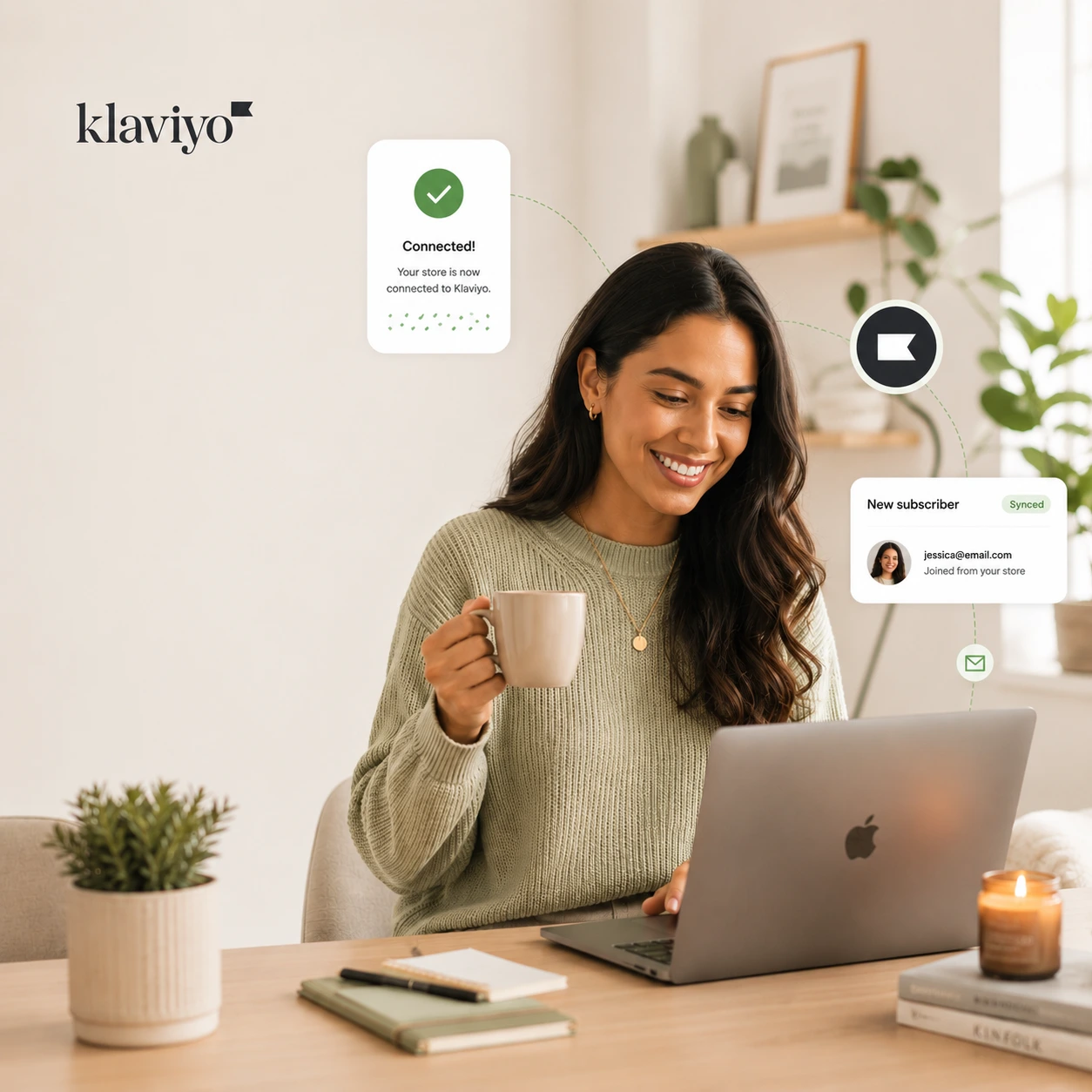
Capture shopper name and email on your quiz welcome screen and sync them straight into your Klaviyo list — automatically, on every completion.
Free plan available · No credit card required
Auto-synced
Name · Email
Three steps to list growth
Connect your Klaviyo account
Go to Settings → Integrations in your ShopperQuiz dashboard. Paste your Klaviyo Public API Key and the List ID you want subscribers added to. Save — done.
Shoppers opt in on the welcome screen
Your quiz welcome screen collects name and email. An optional newsletter checkbox lets shoppers opt into your Klaviyo list — pre-checked or unchecked, your choice.
Subscribers sync automatically
When a shopper completes the quiz and has opted in, ShopperQuiz adds them to your Klaviyo list — name and email, ready for your flows and campaigns.
Everything you need,
built in
Name & Email Capture
Collect shopper name and email on the quiz welcome screen. Configure each field as optional or required — and whether to show the mailing list checkbox.
Opt-In Checkbox
A configurable newsletter checkbox on the welcome screen. Set the label text, default state (checked or unchecked), and whether it's required to proceed.
Synced on Completion
Subscribers are added to Klaviyo only when a shopper completes the quiz — not on form submit, not on page load. Completion-gated for quality leads.
Your API Key, Your Data
ShopperQuiz connects using your Klaviyo Public API Key and List ID. Subscribers go directly into your Klaviyo account — no middleman, no data sharing.
What gets sent to Klaviyo
Simple and transparent — here's exactly what ShopperQuiz syncs to your Klaviyo account.
First Name
If collected on the welcome screen, the shopper's first name is synced as a profile property in Klaviyo.
Email Address
The shopper's email address — used as the Klaviyo profile identifier and added to your chosen list.
Nothing Else
Quiz answers, product recommendations, and vote data are never sent to Klaviyo. Only name and email — no exceptions.
Privacy first. ShopperQuiz only syncs data the shopper explicitly provides and opts into. Quiz answers, product recommendations, and browsing behaviour are never sent to Klaviyo.
Set up in
minutes.
From connection to first subscriber — six steps, no developer needed.
Go to Integrations
In your ShopperQuiz dashboard, navigate to Settings → Integrations and find the Klaviyo card.
Get your Klaviyo API key
In Klaviyo, go to Account → Settings → API Keys. Copy your Public API Key.
Copy your List ID
In Klaviyo, go to Lists & Segments, open the list you want, and copy the List ID from the list settings.
Paste into ShopperQuiz
Enter both the API Key and List ID in the Klaviyo card and click Save. ShopperQuiz verifies the credentials instantly.
Configure the welcome screen
In the Quiz Builder, open the Welcome Screen editor. Enable the email field, add the mailing list checkbox, and set your opt-in label text.
Go live
Publish your quiz. Every shopper who completes it and opts in will be added to your Klaviyo list — automatically, every time.
Email & SMS, beyond Klaviyo
Klaviyo is live today, alongside Resend for branded result emails. More email, SMS, and CRM tools are on the way.

Email Results with Resend
LiveConnect your own Resend account to email each shopper a branded summary of their recommended products — from your domain, seconds after they finish. Pairs perfectly with Klaviyo list-building.
Coming soon

Mailchimp
Email
Postscript
SMS
Attentive
SMS
HubSpot
CRMAvailable on Starter plan and above
Klaviyo integration is included on the Starter ($29/mo), Growth ($59/mo), Pro ($99/mo), and Custom plans. Start free and upgrade when you're ready.
Ready to grow your list
with every quiz?
Connect Klaviyo in under two minutes. Start capturing subscribers from your first quiz today.