Shopify makes it easy to open a store — and easy for shoppers to get lost in a big catalog. A product recommendation quiz turns that catalog into a guided experience, matching each shopper to the products that fit them. Here is how to build one on Shopify, start to finish.
Why Shopify stores convert better with a quiz
Most Shopify traffic lands on a homepage or collection page with a goal in mind but no clear path to the right product. They scroll, they second-guess, they leave. A quiz meets that shopper where they are: a few quick questions, then a confident, personalised recommendation.
The payoff shows up across the funnel — higher conversion, larger average orders, lower returns, and richer first-party data about what your shoppers actually want.
What you’ll need
- A Shopify store with products, collections, and tags set up
- A ShopperQuiz account — the free plan covers your first quiz and 150 responses a month
- A few minutes to install the app and add the widget to your theme
Step 1 — Install the app and sync your catalog
Install ShopperQuiz from the Shopify App Store. On install you’re redirected to your ShopperQuiz dashboard, where the app imports your products, collections, and tags automatically via the Shopify API and caches them.
Because the catalog is cached, the quiz widget never makes slow live API calls while a shopper is answering — it stays fast even on mobile. Webhooks keep everything current whenever you change a product in Shopify.
Step 2 — Decide what makes a product “right”
The best quizzes are built backwards from the catalog. Ask yourself: what two or three things actually determine which product suits a shopper? Those become your questions.
- Haircare: hair type, primary concern, routine length
- Apparel: fit, style, occasion, size
- Supplements: goal, dietary needs, activity level
Keep it to 5–8 questions. Fewer feels arbitrary; more hurts completion.
Step 3 — Build the quiz with the voting engine
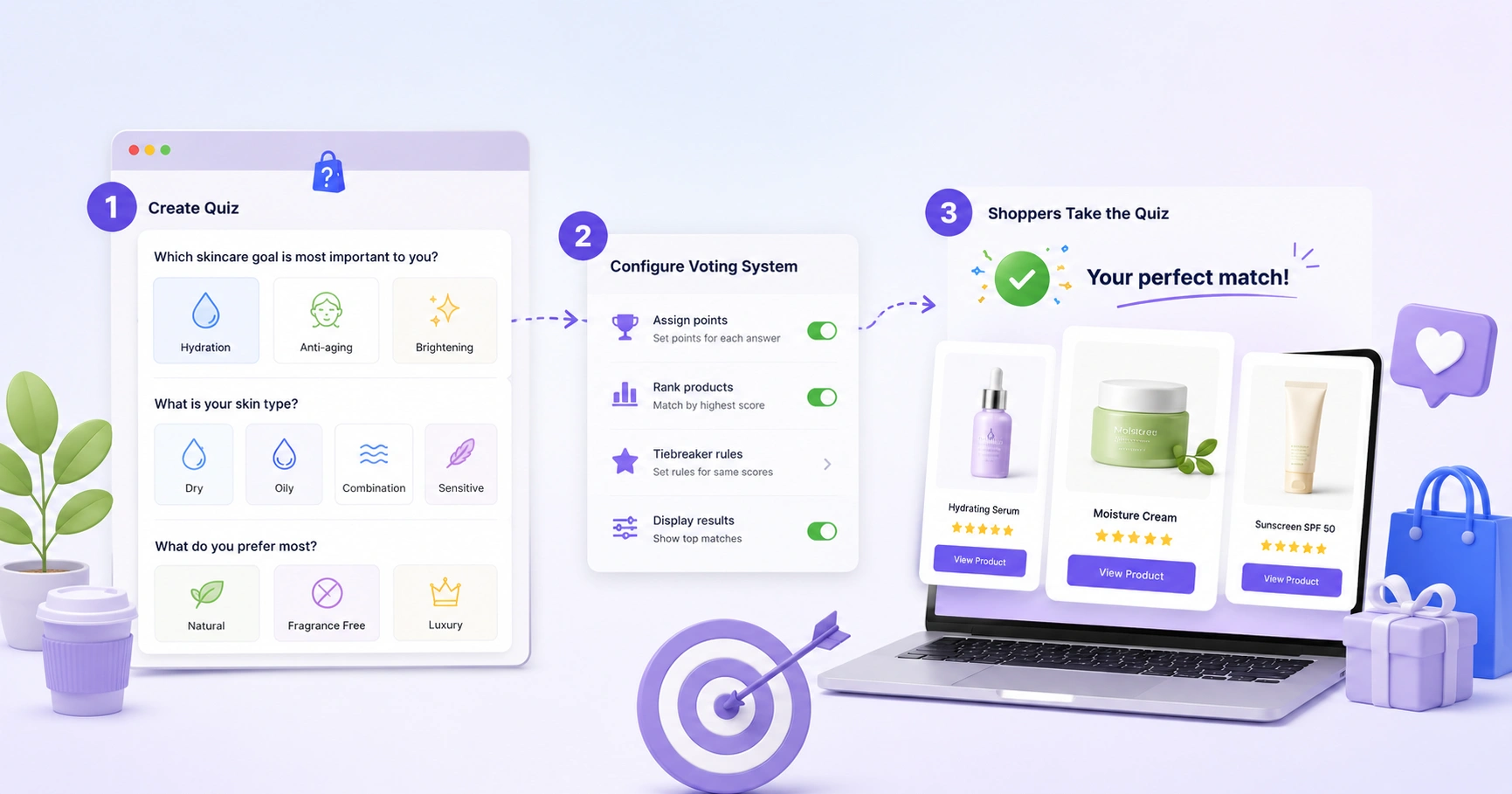
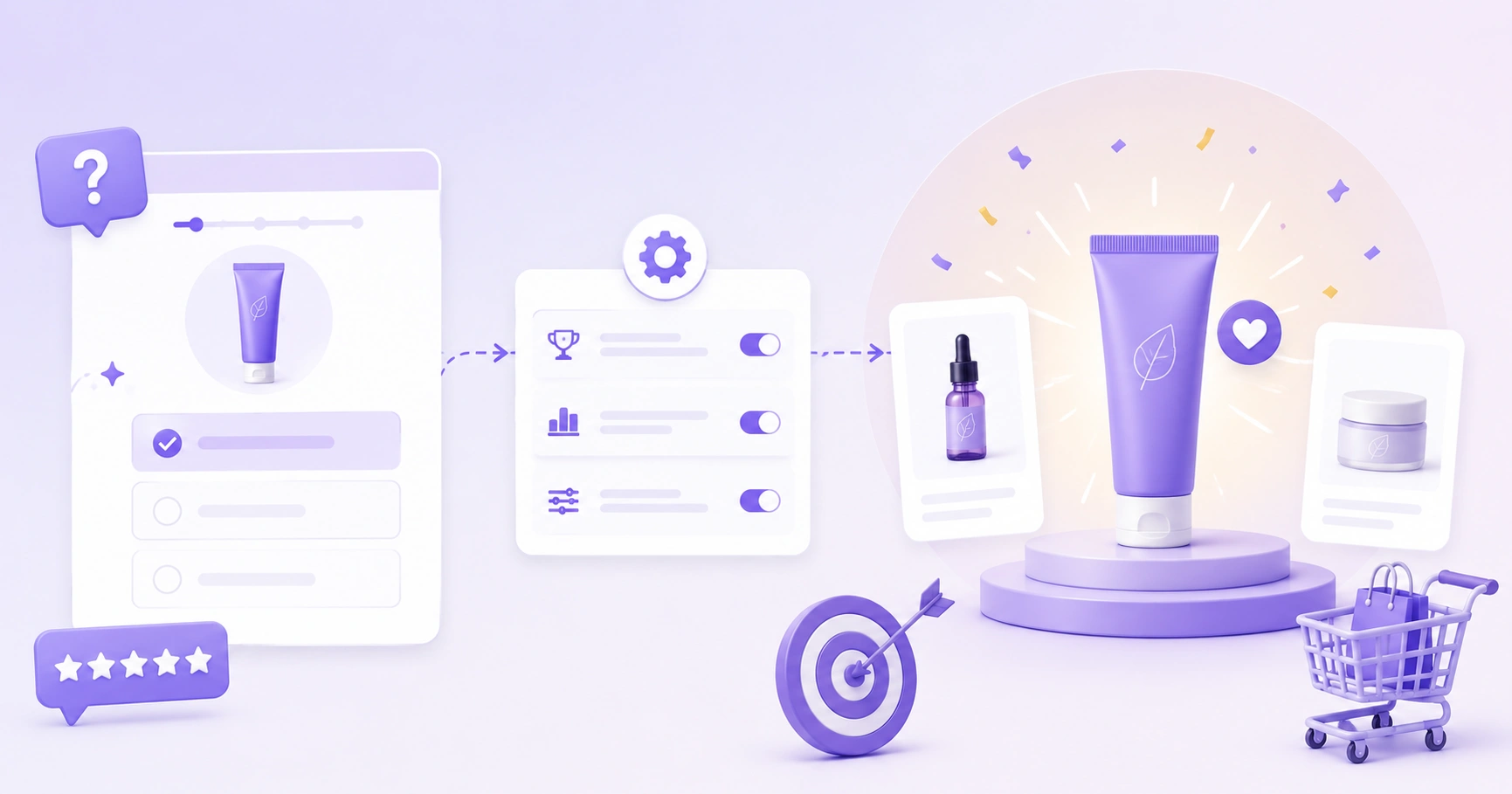
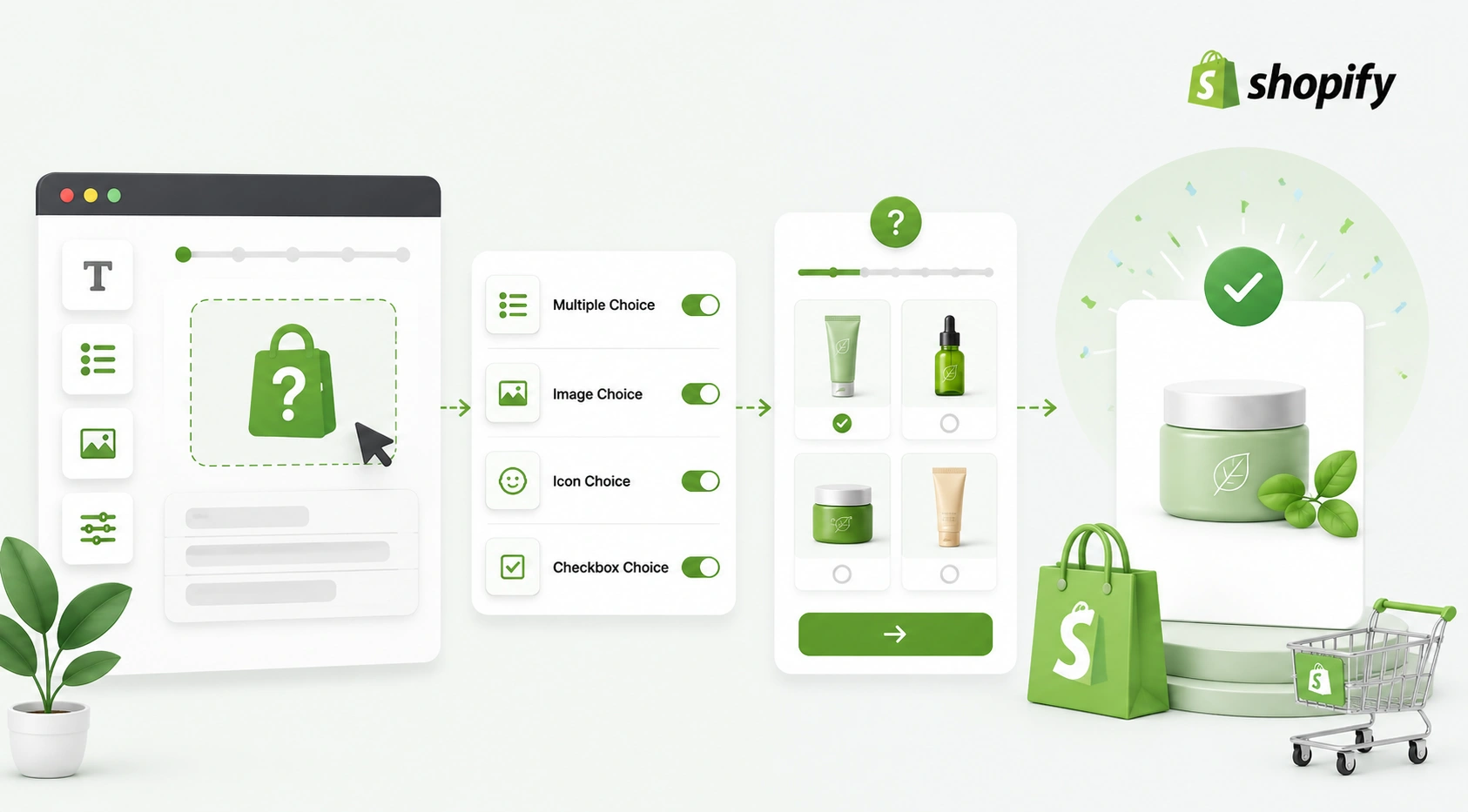
In the Quiz Builder, add your questions and, for each answer, assign votes to the products, collections, or tags that answer should favour. ShopperQuiz ranks results with a voting engine — every answer casts votes, scores add up across the quiz, and the top-scored products win. It’s far more accurate than a branching “if this, show that” tree.
- 1Vote by collection or tag so you don’t have to list every product by hand — perfect as your Shopify catalog grows.
- 2Filter questions permanently remove products outside a chosen collection or tag, even if they earned votes elsewhere.
- 3Budget filter narrows results by price using your synced Shopify prices — no separate collections needed.
- 4Include / exclude pins a hero product to the top for a given answer, or removes one entirely.
Step 4 — Style it to match your theme
Open Widget Styles and match your store: colors, fonts, button styles, answer layouts, product cards, and the progress bar are all configurable — with a live preview and no code. The widget renders in an isolated iframe, so your theme’s CSS never clashes with it, while it can still inherit your brand fonts.
Step 5 — Add the quiz to your storefront
ShopperQuiz ships as a Theme App Extension, so you place it visually. Go to Online Store → Customize, add the ShopperQuiz block to any page — homepage, a dedicated “Find your match” page, a product or collection page — and publish. No theme code required.
Step 6 — Sell from the results screen
On the results screen, shoppers can add recommended products to cart or go straight to checkout using the Shopify Storefront API — staying inside your store’s native flow the entire time. Cutting the extra click to a product page meaningfully lifts conversion.
Step 7 — Track results and refine
With the quiz live, watch completion rate, drop-off by question, cart conversion, and (on higher plans) revenue attributed to the quiz. Trim questions that lose shoppers, and rebalance votes if one product dominates every result. A quiz is a living asset — the best merchants revisit theirs each quarter.
Launch it this week
A solid Shopify quiz is an afternoon of work and starts paying off immediately: fewer bounces, bigger carts, and shoppers who feel understood. Start with a handful of questions, publish, and iterate from real data.
Build your Shopify quiz free
Install ShopperQuiz on Shopify, sync your catalog automatically, and place the quiz with a Theme App Extension. Free plan available — no credit card required.
Start free